
30 Meilleures Mods Stray : CJ, Garfield, Graphismes, Mode Première Personne, et Plus
 Vladyslav Shamshurov
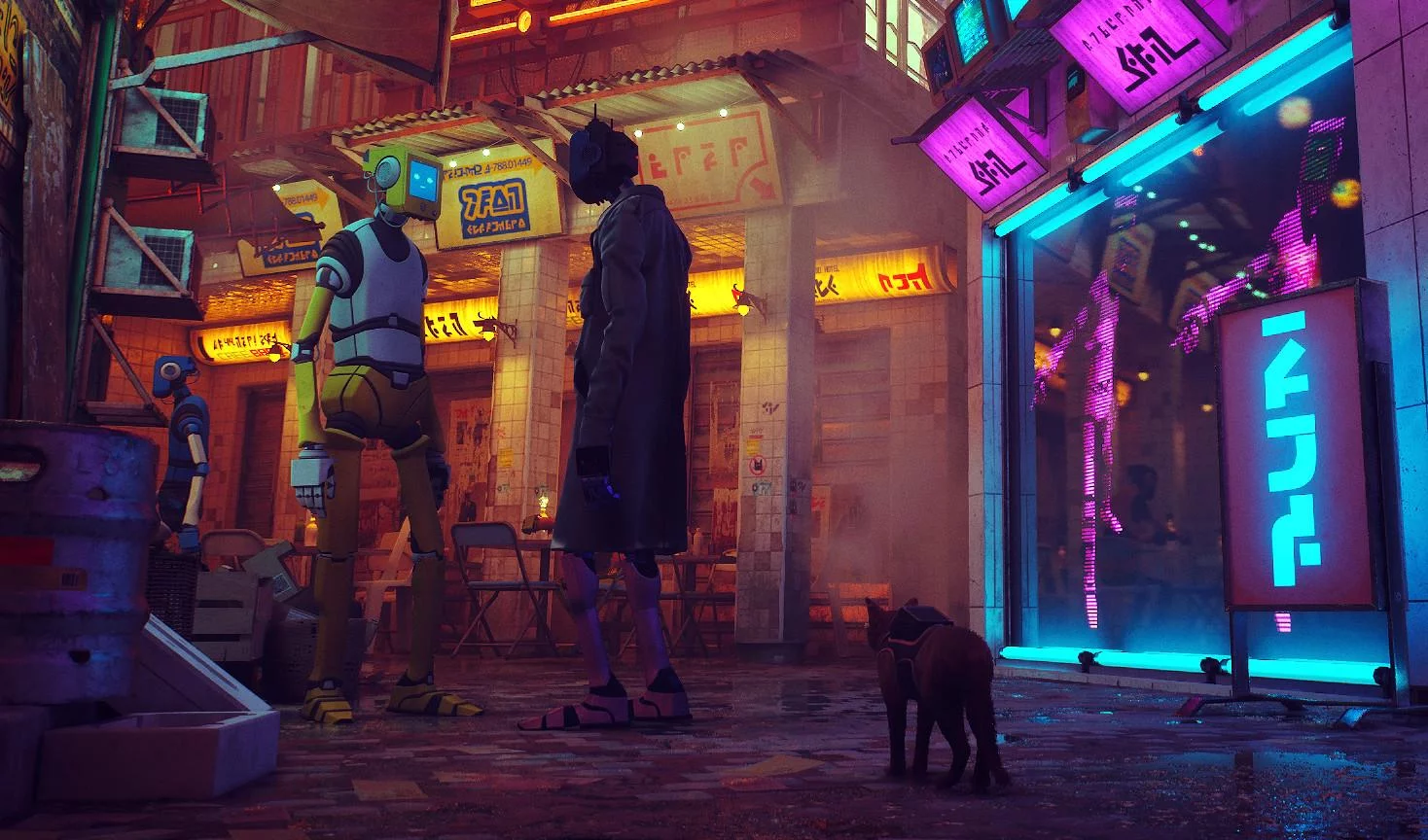
Les mods pour Stray peuvent véritablement changer le jeu : ils vous permettent de choisir une race de chat différente, d'améliorer les graphismes, d'ajouter des skins inhabituels, d'activer le mode coopératif, et même de remodeler le gameplay familier. Dans cet article, nous avons rassemblé les modifications Stray les plus intéressantes, les avons triées par catégorie, et expliqué ce que chacune fait. De cette façon, vous pouvez rapidement choisir un mod graphique, un nouveau skin de chat, ou un changement de gameplay inhabituel.
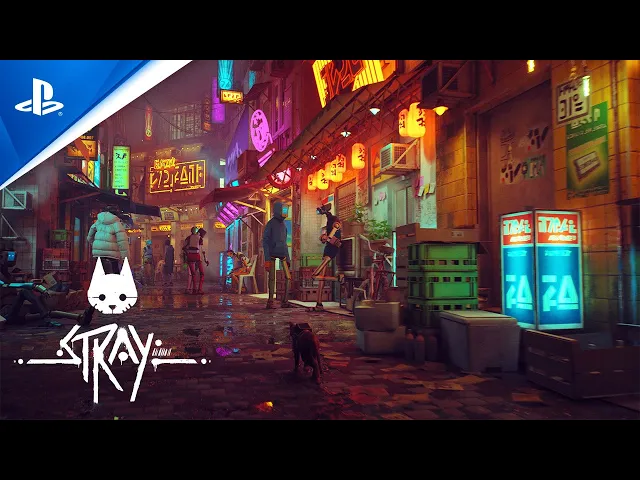
Si vous aimez des histoires comme celle-ci, consultez notre liste de jeux similaires à Stray.
Comment installer des mods pour Stray
La plupart des modifications Stray sont installées manuellement via le dossier Paks dans le répertoire du jeu. Avant d'installer, assurez-vous de vérifier la description du mod spécifique : les préréglages graphiques, le mode photo, les entraîneurs, et les mods basés sur Unreal ModLoader peuvent nécessiter des étapes supplémentaires.
- Téléchargez l'archive avec la modification et extrayez-la.
- Ouvrez le dossier Paks situé à C:\Program Files (x86)\Steam\steamapps\common\Stray\Hk_project\Content\Paks.
- Copiez le fichier du mod dans ce répertoire.
- Lancez le jeu.
Pour supprimer une modification, il suffit de supprimer le fichier correspondant du dossier Paks. Si un mod est installé différemment, nous le mentionnerons dans la description.
Mods graphiques pour Stray : Comment améliorer les visuels, l'éclairage et l'atmosphère
Cette section comprend des modifications qui rendent Stray plus lumineux, plus riche en contrastes, et plus atmosphérique. Des mods comme ceux-ci améliorent la sensation visuelle de la ville cyberpunk, rendent le jeu plus immersif, et vous aident à voir des lieux familiers d'une nouvelle manière.
Simple Realistic 3D pour Stray : Visuels photoréalistes

Ce mod améliore les graphismes du jeu en utilisant des filtres ReShade. Après l'installation, l'éclairage devient plus lumineux et les ombres semblent plus réalistes. La qualité des effets de post-traitement est également nettement améliorée.
Étapes d'installation :
- Téléchargez et extrayez l'archive.
- Placez-le dans le dossier contenant le fichier exécutable Stray-Win64-Shipping.exe. Par défaut, il se trouve à C:\Program Files (x86)\Steam\steamapps\common\Stray\Hk_project\Binaries\Win64.
- Démarrez le jeu.
Si vous avez précédemment installé un autre mod basé sur ReShade, assurez-vous de supprimer d'abord l'ancien préréglage.
Real Depth 3D ReShade : Meilleurs graphismes et profondeur d'image

Real Depth 3D ReShade aide à rendre l'image plus riche et ajoute un sens de profondeur. Après l'installation, certaines textures, comme le feuillage vert, peuvent s'afficher incorrectement. Ce n'est pas un problème critique, mais il est préférable d'en être informé à l'avance.
La méthode d'installation est la même que pour le mod précédent.
Mods de gameplay pour Stray : Co-op, mode première personne et nouvelles fonctionnalités
Ces modifications conviennent le mieux aux joueurs qui ont déjà terminé Stray et souhaitent une nouvelle expérience. Le mode première personne change la façon dont la ville se ressent et rend le voyage du chat plus personnel, tandis que le mod co-op vous permet de jouer à travers la campagne narrative avec un ami sur le même écran. Si vous aimez les parties en co-op, consultez notre liste des meilleurs jeux co-op sur PC, PS4, PS5 et Xbox.
Écran partagé : Co-op local sur un écran partagé

Cette section contient des instructions détaillées pour installer la modification. Suivez toutes les étapes ci-dessous pour lancer le mode coopératif.
Suivez ce lien vers la modification Splitscreen sur Nexus Mods. Pour télécharger l'amélioration, vous devez vous connecter ou vous inscrire sur le site, sinon l'accès au téléchargement sera bloqué.
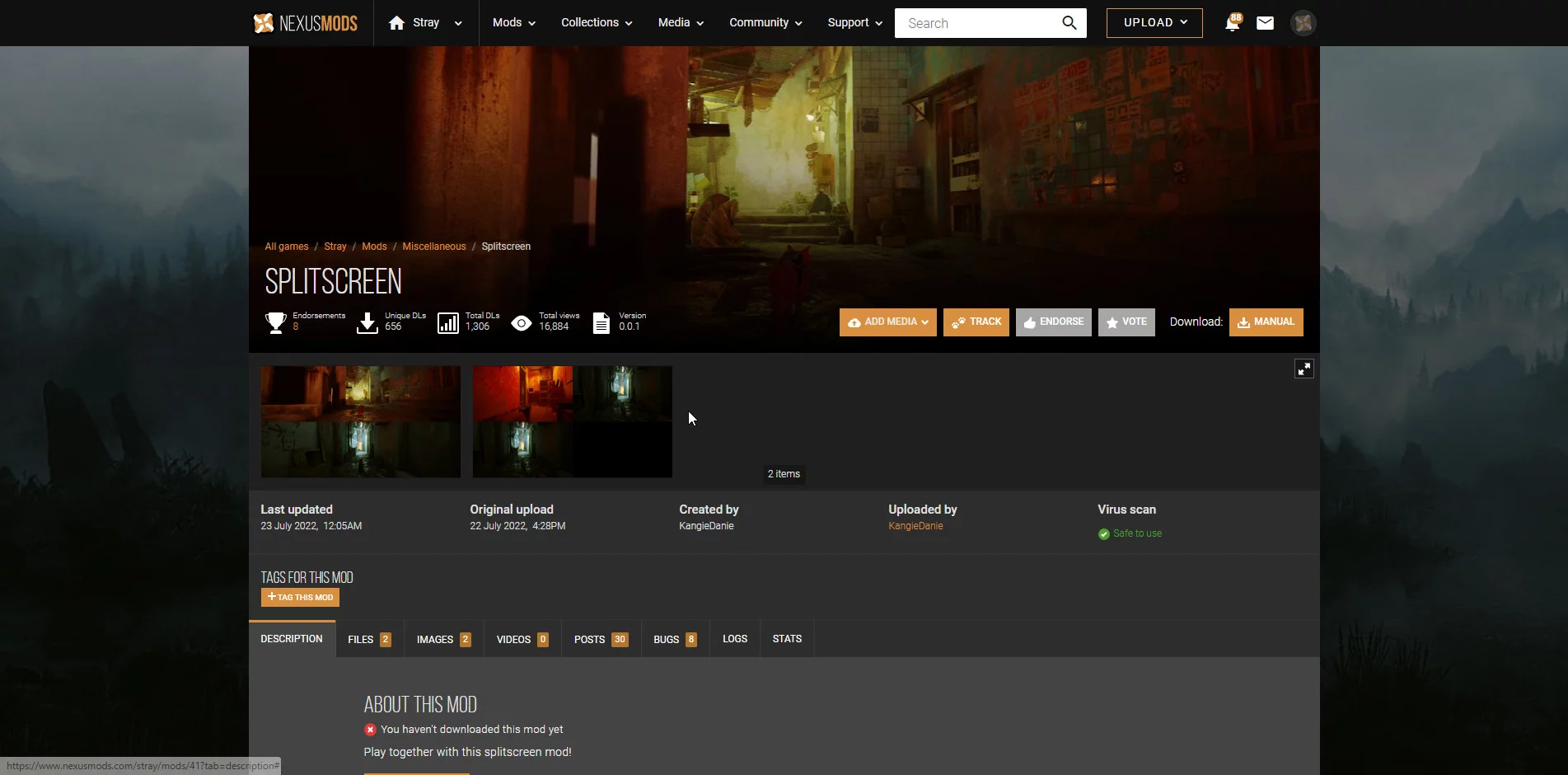
Cliquez sur l'onglet Fichiers et utilisez les boutons Téléchargement manuel un par un dans les fenêtres correspondantes pour les fichiers Splitscreen et Configuration requise pour Splitscreen.
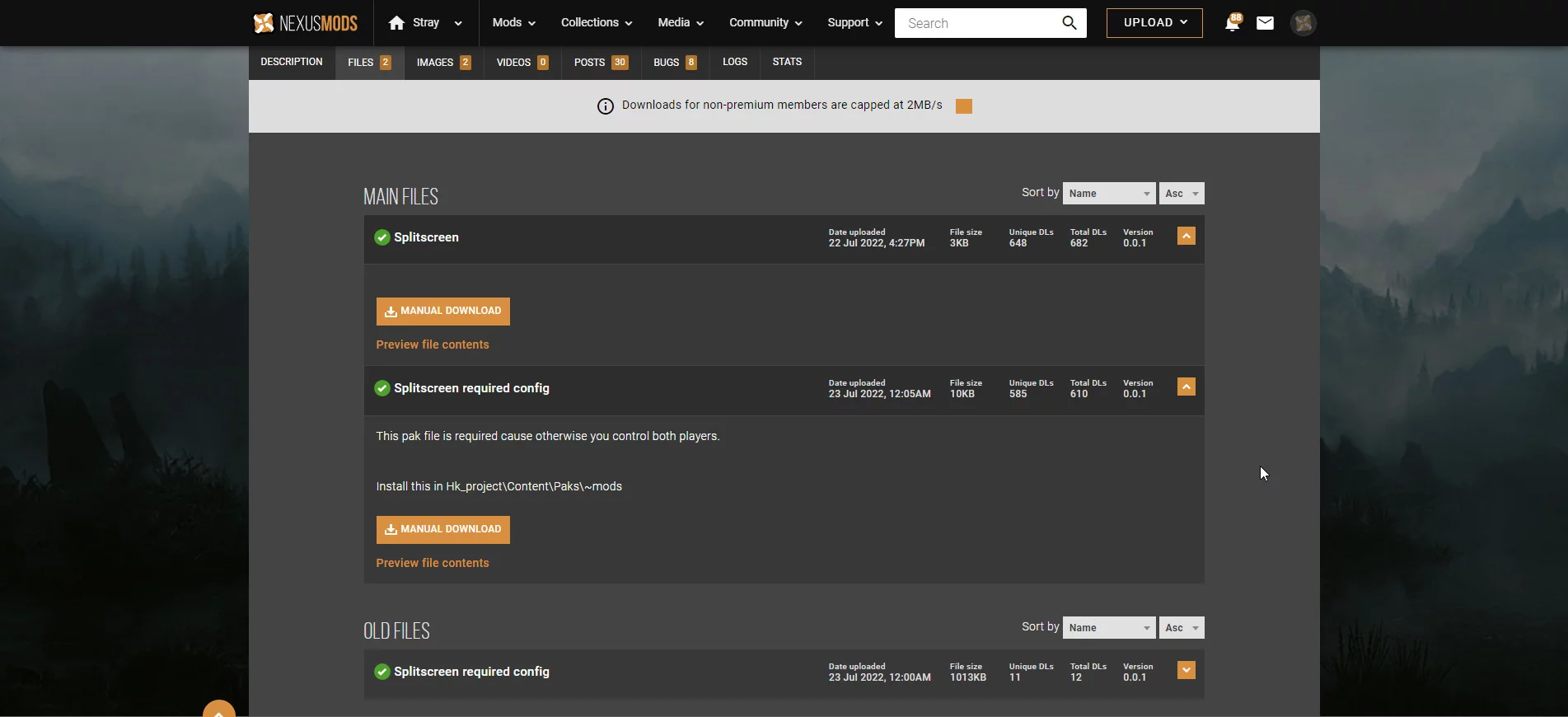
Sur les pages ouvertes, utilisez le bouton Téléchargement lent pour installer les fichiers. Vous n'avez pas besoin d'acheter un abonnement premium ou d'utiliser un téléchargement rapide. Les deux fichiers sont très petits, environ 13 Ko, et se téléchargeront rapidement même à faible vitesse.
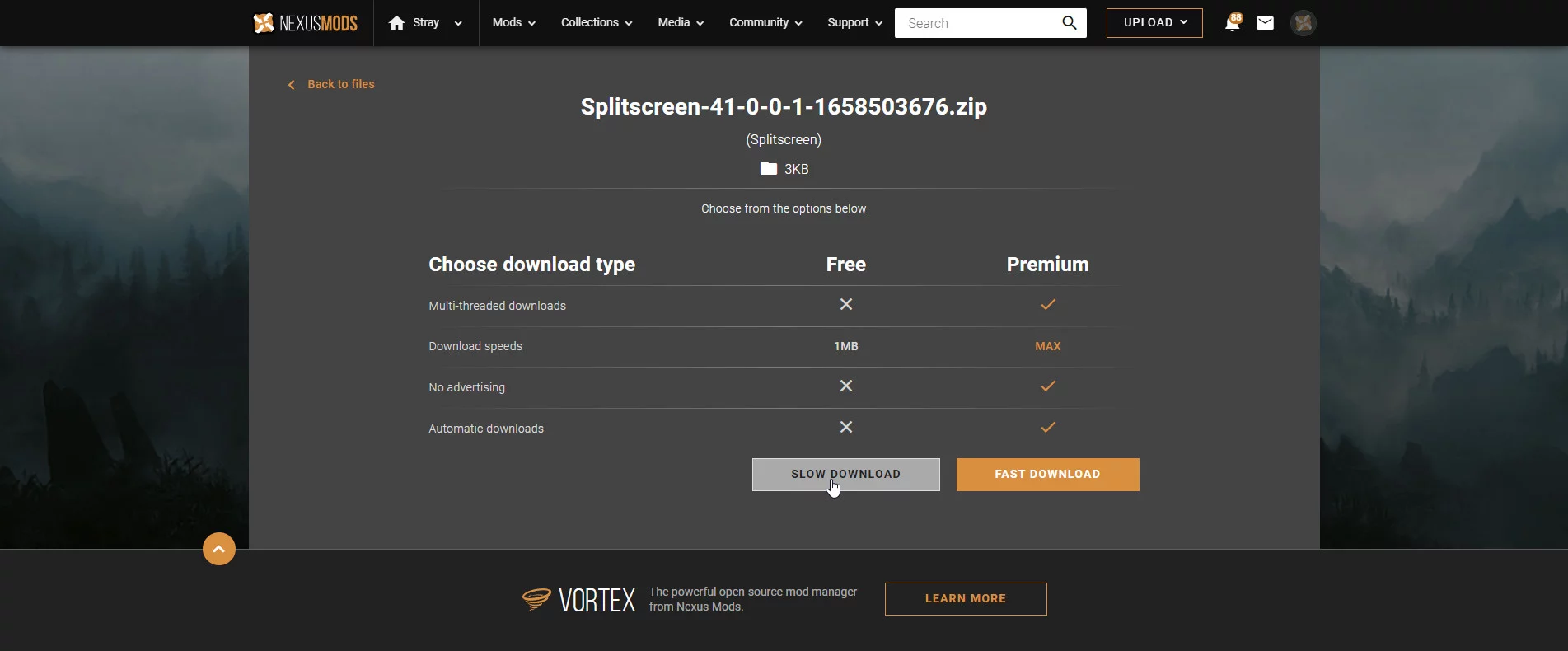
Après le téléchargement, extrayez les archives et placez les fichiers téléchargés dans le dossier racine du jeu. Les utilisateurs de Steam peuvent ouvrir le client et trouver Stray dans la liste des applications achetées. Après cela, faites un clic droit dessus, ouvrez Propriétés, et dans la section Fichiers locaux, cliquez sur Parcourir pour ouvrir le bon dossier.
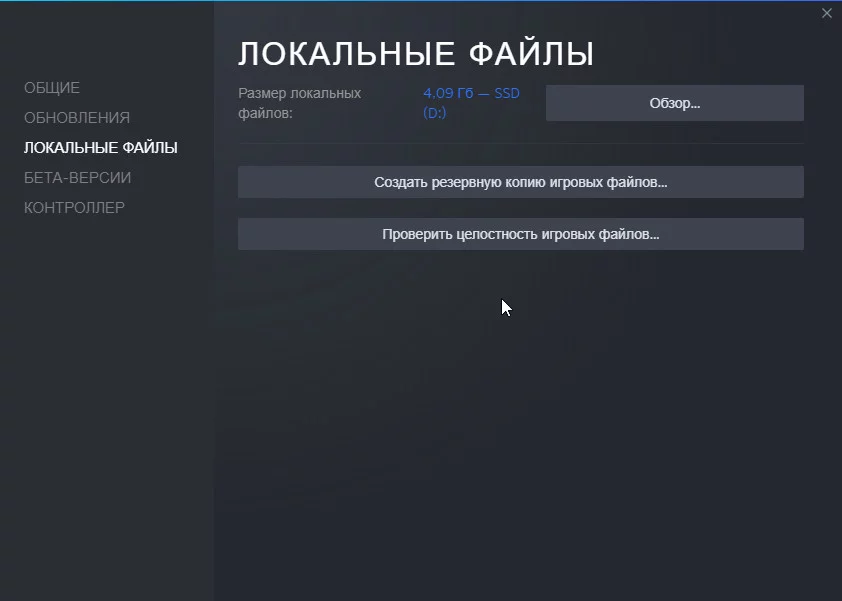
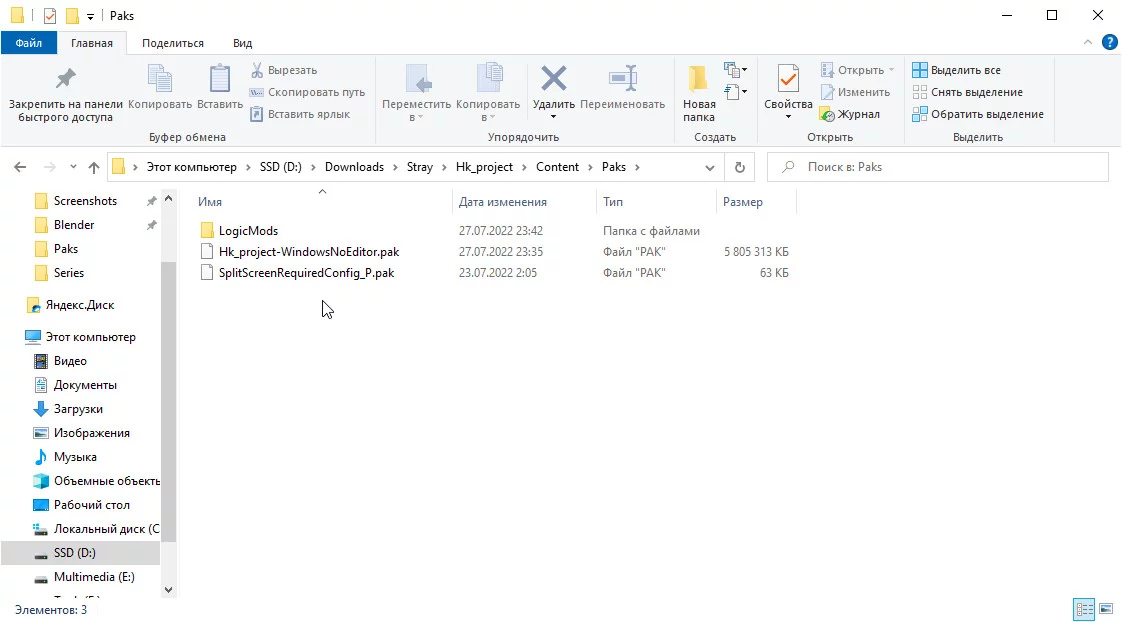
Dans le répertoire des fichiers du jeu Stray, allez d'abord dans Stray / Hk_project / Content / Paks et placez le fichier SplitScreenRequiredConfig_P.pak là.
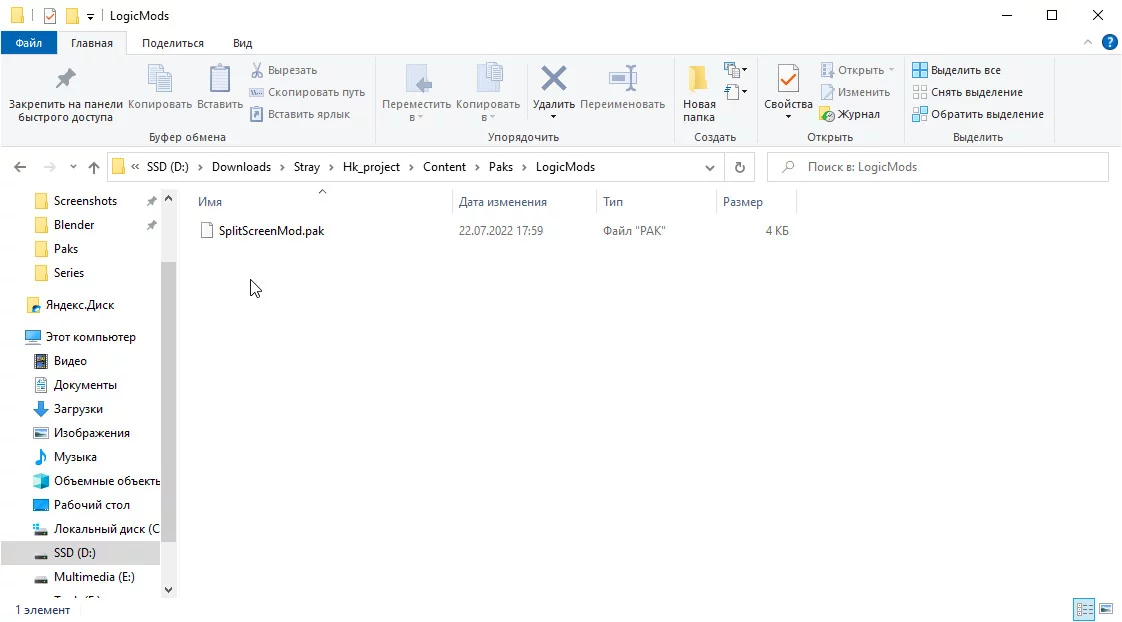
Au même endroit, créez un dossier LogicMods et ouvrez-le. Placez le fichier SplitScreenMod.pak à l'intérieur du dossier LogicMods.
Suivez ce lien pour télécharger automatiquement UnrealModLoader, puis extrayez les fichiers à un emplacement pratique.
Ouvrez le dossier UnrealModLoader et exécutez le fichier UnrealEngineModLauncher. Lancez Stray.

Dans le menu principal, appuyez sur F9 sur le clavier. L'écran se divisera pour deux utilisateurs : l'image principale apparaîtra dans la partie supérieure, tandis que les boutons du menu principal actifs apparaîtront dans la zone inférieure sur un fond complètement noir.
Pressing F9 à nouveau permet au joueur d'ajouter plus d'utilisateurs, mais il y a certaines limitations et bugs. Des informations détaillées à ce sujet sont fournies dans la section suivante.
Limitations et Bugs : Comment éviter les problèmes lors du lancement du Mod
Tout d'abord, notez que le développeur du mod n'a pas terminé l'ensemble du jeu en mode écran partagé, donc il n'y a actuellement aucune confirmation que l'amélioration fonctionne sans erreurs tout au long de la partie. Si vous rencontrez des bugs, redémarrez le jeu et chargez la dernière sauvegarde sans activer d'utilisateurs supplémentaires.
Faites attention aux principaux détails sur le fonctionnement de la modification Splitscreen :
- Les utilisateurs supplémentaires sont activés avec la touche F9 sur le clavier.
- En mode coopératif, seul l'hôte de la session peut voir le HUD, donc les autres utilisateurs qui se joignent devront explorer le monde du jeu sans cela.
- Dans de rares cas, des problèmes peuvent survenir lors du passage à d'autres niveaux : les amis qui ont rejoint la session peuvent se retrouver bloqués. Rechargez la sauvegarde et reconnectez les autres utilisateurs.
- Stray n'a pas été conçu pour une utilisation en écran partagé, donc des glitches visuels peuvent apparaître de temps en temps.
- Ajoutez plus d'un joueur supplémentaire à vos risques et périls : le développeur n'a pas confirmé un fonctionnement stable pour trois utilisateurs ou plus.
- La caméra peut perdre de vue le joueur principal. Dans ce cas, essayez de redémarrer la sauvegarde. Le développeur du mod est conscient de ce problème et essaiera de le résoudre bientôt.
- L'utilisation de la touche F9 en dehors du menu principal peut provoquer des erreurs fatales entraînant un crash complet du jeu. Fermez Stray, exécutez à nouveau UnrealEngineModLauncher, et rouvrez le jeu.
Stray : Mod Première Personne. Vue à la Première Personne

Ce mod vous permet de voir le monde à travers les yeux du chat. Sauter et se déplacer à travers les lieux en première personne semble inhabituel, mais cela peut offrir une nouvelle expérience de jeu.
Mod PhotoMode. Mode Photo

Stray n'a pas de mode photo intégré. Ce problème peut être résolu avec un mod dédié. En plus de prendre des captures d'écran, le mod vous permet également d'ajuster la profondeur de champ, de changer l'angle de la caméra et d'appliquer divers filtres de couleur.
Étapes d'installation :
- Téléchargez et installez UnrealModLoader.
- Téléchargez le mod.
- Ouvrez le dossier Paks situé à C:\Program Files (x86)\Steam\steamapps\common\Stray\Hk_project\Content\Paks.
- Créez un répertoire LogicMods à l'intérieur.
- Déplacez le fichier PhotoMode.pak dans ce dossier.
- Lancez UnrealModLoader.
- Lancez Stray.
Pour lancer le mode photo, appuyez sur F9.
Mods de remplacement de modèle de Chat et B-12 pour Stray : Nouvelles Peaux
Cette section comprend des mods qui changent l'apparence du personnage principal de Stray, le robot B-12, et du sac à dos du chat. Avec eux, vous pouvez choisir une couleur de fourrure différente, remplacer le modèle de chat, ajouter des yeux lumineux, jouer en tant que personnage d'une autre œuvre ou changer l'apparence de votre compagnon.
Choix de la portée. Changer la couleur de la fourrure du chat

Cette modification vous permet de changer la couleur de la fourrure de votre héros duveteux. Vous pouvez choisir des couleurs noire, blanche et grise, ainsi que des nuances typiques d'un chat siamois et d'un tigre.
Yeux de chat émissifs. Yeux qui brillent dans le noir

Ce mod rend les yeux de votre chat incroyablement brillants. Grâce à cet effet, le personnage principal semble plus sombre et plus sinistre, mais ce style visuel aura probablement ses fans.
Garfield : Édition Cartoon. Jouez en tant que Garfield

Garfield vous est probablement familier grâce aux dessins animés ou aux bandes dessinées. Ce chat dodu et duveteux est depuis longtemps l'un des chats comiques les plus reconnaissables. Installez ce mod pour jouer en tant que lui.
Chiot heureux. Jouez en tant que chien mignon

Si, pour une raison quelconque, vous aimez les chiens plus que les chats, jetez un œil à cet ajout. Il vous permet de jouer à travers tout le jeu en tant que mignon chiot noir et blanc.
Le Chat Potté

Ce mod change le personnage principal en Le Chat Potté des films d'animation de DreamWorks. Il est apparu dans Shrek 2 et a ensuite reçu deux films d'animation en solo.
Chat Sphynx. Jouez en tant que Sphynx canadien

Si vous êtes fan des chats sans poils, vous aimerez probablement ce complément. Après avoir installé le mod, vous pourrez jouer en tant que Sphynx rose.
Skins pour différentes races de chats dans Stray

Cette section comprend des skins de chats personnalisés qui ne sont pas liés à des films, dessins animés ou jeux spécifiques. Des mods comme ceux-ci sont un bon choix si vous souhaitez simplement changer la race, la couleur ou l'apparence générale du personnage principal.
Nouveaux Habillages Pour B12. Nouveaux Looks Pour le Robot B-12

Cette modification vous permet de rendre l'apparence du droid B-12 plus détaillée. De plus, vous pouvez choisir des habillages alternatifs pour le robot. Ils changent la couleur de son corps et ajoutent de nouveaux accessoires, tels que des antennes supplémentaires.
Sac à Dos et Drone Invisibles. Rendez le Sac à Dos et le Drone B-12 Invisibles

Si vous n'aimez pas le chat portant un sac à dos, vous pouvez l'enlever avec cette modification. Le robot B-12 peut également être rendu invisible.
Pins Badges Fallout. Sac à dos dans le style de la série Fallout

Ce mod plaira aux fans de la série Fallout . Après installation, votre chat recevra un petit sac à dos signature avec des logos familiers. Ceux-ci incluent Vault Boy, Nuka-Cola, un badge d'explosion nucléaire, et plus encore.
Mods Stray Inhabituels : Shrek, Sonic, et Autres Remplacements Bizarres
Ces modifications rompent nettement l'atmosphère de l'original Stray, mais elles sont idéales pour des parties répétées, des captures d'écran, et des expériences amusantes. Si vous avez déjà exploré le jeu sous tous ses angles, des skins inhabituels peuvent rafraîchir l'expérience.
Shrek au lieu du chat

Cette modification remplace le protagoniste duveteux par l'ogre vert des films d'animation DreamWorks. Les changements sont purement cosmétiques et n'affectent pas le gameplay.
MOD BLAGUE CJ. Jouez en tant que CJ

Une modification humoristique qui remplace le modèle de chat par CJ de GTA: San Andreas. Un excellent moyen de surprendre vos amis.
Spyro le Dragon. Jouez en tant que Spyro

Cette modification remplace le modèle de chat par le dragon de la série Spyro le Dragon . Seule l'apparence du protagoniste change. Il ne pourra pas cracher du feu ni voler.
Chat Sonic

Un mod amusant qui transforme votre chat en Sonic bleu de la série Sonic the Hedgehog . Il se déplace toujours sur ses quatre pattes, cependant.
Entraîneur pour Stray : Trucs, Caméra libre et Invincibilité

Cette modification est un entraîneur pour Stray qui débloque des commandes supplémentaires. Celles-ci incluent le mode invincibilité, la caméra libre, le changement d'angle de caméra et la possibilité de déplacer le chat à n'importe quel point de l'emplacement.
Raccourcis de l'entraîneur :
- H : afficher toutes les commandes.
- F2: activer la caméra libre.
- Shift+F2: passer à la caméra libre et téléporter le chat à l'endroit où vous l'avez déplacé.
- F3: afficher la barre de santé.
- F3+Shift: changer le volume.
- F4: activer le mode invincibilité.
- F5: sauvegarder.
- F6: charger.
Étapes d'installation :
- Téléchargez et installez Unreal ModLoader.
- Téléchargez le mod.
- Ouvrez le dossier Paks situé à C:\Program Files (x86)\Steam\steamapps\common\Stray\Hk_project\Content\Paks.
- Créez un répertoire LogicMods à l'intérieur.
- Déplacez le fichier StrayTrainer.pak dans ce dossier.
- Lancez UnrealModLoader.
- Lancez Stray.
Quels mods Stray installer en premier
Si vous souhaitez simplement améliorer les visuels, commencez par Simple Realistic 3D pour Stray ou Real Depth 3D ReShade. Pour une nouvelle partie, les mods Splitscreen, First Person Mod et PhotoMode sont de meilleurs choix. Si vous voulez changer l'apparence du héros, choisissez des mods avec de nouvelles races de chats, Pick of the Litter, Sphynx Cat, ou des remplacements inhabituels comme Garfield, Shrek, Sonic et CJ.
Que jouer après Stray
Si vous aimez l'univers, jetez un œil à notre liste des meilleurs jeux cyberpunk.
FAQ sur les mods Stray
Dans cette section, nous avons rassemblé des réponses courtes aux principales questions sur les mods Stray : installation, suppression, skins de chats, co-op, vue à la première personne et compatibilité des mods.
Comment installer des mods pour Stray ?
En général, les mods Stray sont installés via le dossier Paks : le fichier de modification doit être placé dans le répertoire du jeu où les fichiers pak sont stockés. Avant d'installer, il est préférable de lire la description du mod spécifique, car certaines modifications peuvent nécessiter des étapes supplémentaires.
Où pouvez-vous télécharger des mods Stray ?
Sur notre site. Ouvrez la page Stray et allez dans la section Fichiers, où vous trouverez des modifications, des skins, des améliorations graphiques et d'autres contenus créés par les utilisateurs.
Comment supprimer des mods de Stray ?
Il suffit de supprimer le fichier du mod du dossier Paks. Si le mod a été installé via Unreal ModLoader ou un dossier LogicMods séparé, supprimez le fichier pak correspondant de là.
Pouvez-vous changer la couleur de fourrure du chat dans le jeu ?
Oui, cette sélection comprend des mods avec différentes couleurs de fourrure et races de chats.
Pouvez-vous jouer en tant que chien au lieu d'un chat ?
Oui, le mod Happy Puppy est utilisé pour cela. Il remplace le chat par un petit bulldog. Vous le trouverez dans notre sélection.
Y a-t-il un mod en vue à la première personne ?
Oui, ce mod s'appelle First Person Mod. Il change la caméra et vous permet de jouer à Stray d'une perspective à la première personne.
Pouvez-vous jouer à Stray en coop ?
Oui, il existe un mod Splitscreen qui permet à deux joueurs de jouer sur le même écran. Le coop en ligne n'est pas inclus.
Les mods de chat changent-ils le chat dans toutes les cinématiques ?
Non, la plupart des modifications changent le modèle de chat uniquement pendant les sections de jeu. Dans certaines cinématiques, l'apparence du personnage peut rester inchangée.
Les mods de Stray sont-ils sûrs ?
Stray est un jeu solo, donc l'installation de modifications régulières ne devrait pas entraîner de bannissement de compte. Cependant, si elles sont installées incorrectement, des plantages, des erreurs ou des bugs visuels peuvent survenir. Il est également important de garder à l'esprit que tous les mods ne sont pas compatibles entre eux.
***
Les mods pour Stray peuvent rafraîchir vos impressions du jeu : améliorer les graphismes, changer l'apparence du chat, ajouter des skins inhabituels ou vous permettre d'essayer de nouvelles options de gameplay. Si vous avez déjà terminé la campagne principale et souhaitez voir le monde cyberpunk de Stray d'une nouvelle manière, installer des mods est l'un des moyens les plus simples d'obtenir une nouvelle expérience.
Quelles modifications de Stray avez-vous le plus aimées ? Partagez vos pensées dans les commentaires !